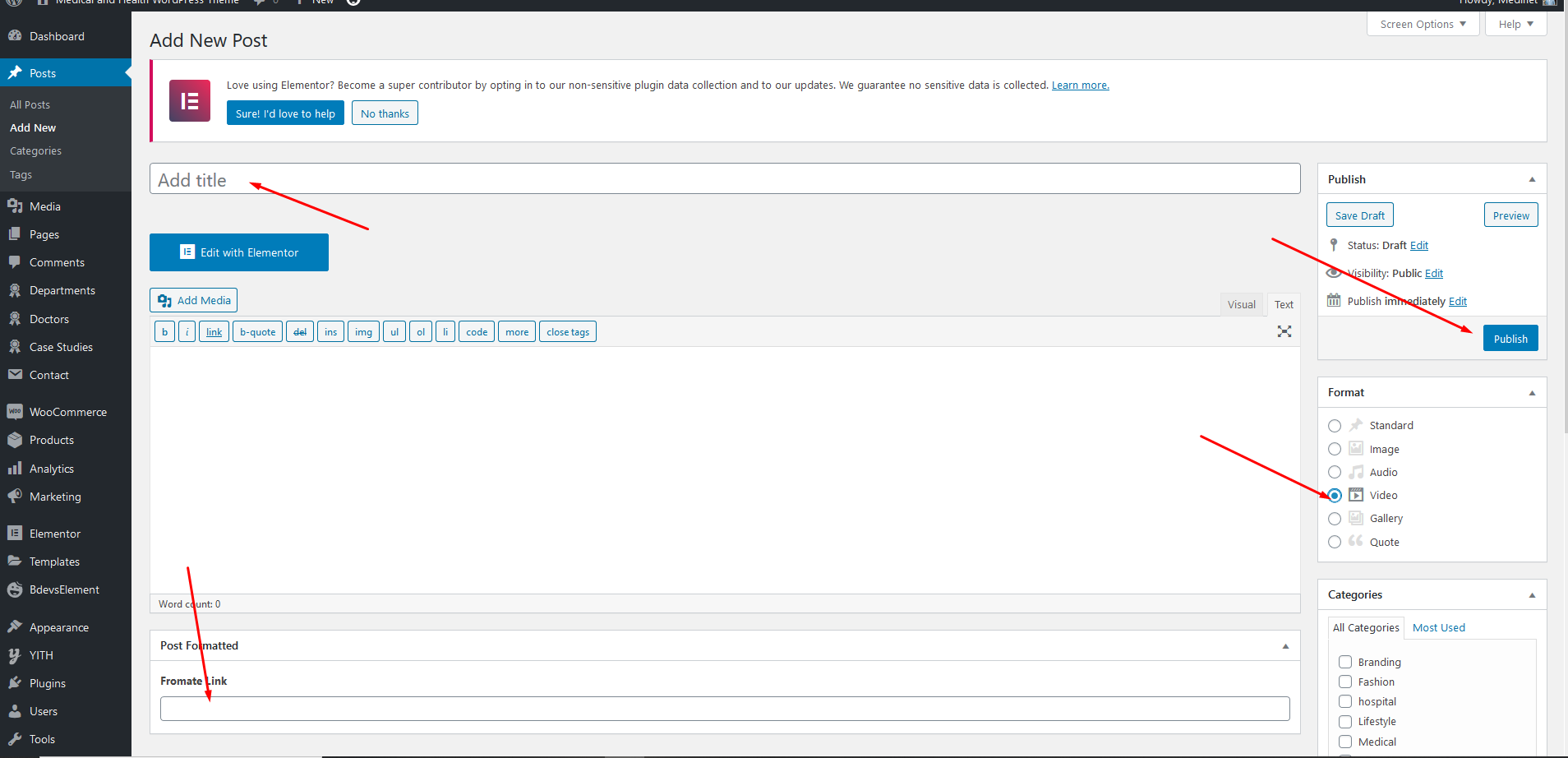
Create a New Post
- Navigate to
Posts>Add Newin your WordPress admin sidebar. - Create a title, and insert your post content in the editing field.
- For a video/audio post, just simply paste the video/audio URL into the Embed Code field.
- Add Categories from the right side. Categories is meta information you create for the post. Each category is a meta link that your viewer can click to view similar type of posts. To assign it to the post, check the box next to the Category name. You can also access and edit Categories from the Post sidebar item in your WordPress admin sidebar.
- Add Tags from the right side. Tags is meta information you create for the post. Each tag is a link that your viewer can click to view similar type of posts. Type the name of the tag in the field, separate multiple tags with commas. You can also access and edit Tags from the Post sidebar item in your WordPress admin sidebar.
- For a single image, click the first Featured Image Box, select an image and click the Set Featured Image button.
- You can also customize Page Title & Sidebar Options in Settings.
- Once you are finished, click
Publishto save the post.
Here is the screenshot that shows the various areas of the blog post page: