App Settings
App Requirements
Download and install Any one from these IDE(Android studio, Vs Code) on your computer.
-
Source Android Studio:https://developer.android.com/studio
-
Source VS Code:https://code.visualstudio.com/download
Setup Flutter and Dart SDK in your computer if you want to modify the source code
Must installed Flutter and dart plugin on your IDE
Installation
After downloading the file, you will receive a ZIP archive. Once you extract it, you will find
Documentation Folder and
Serviceman App
»
 servat-serviceman-app-flutter.zip
included in there:
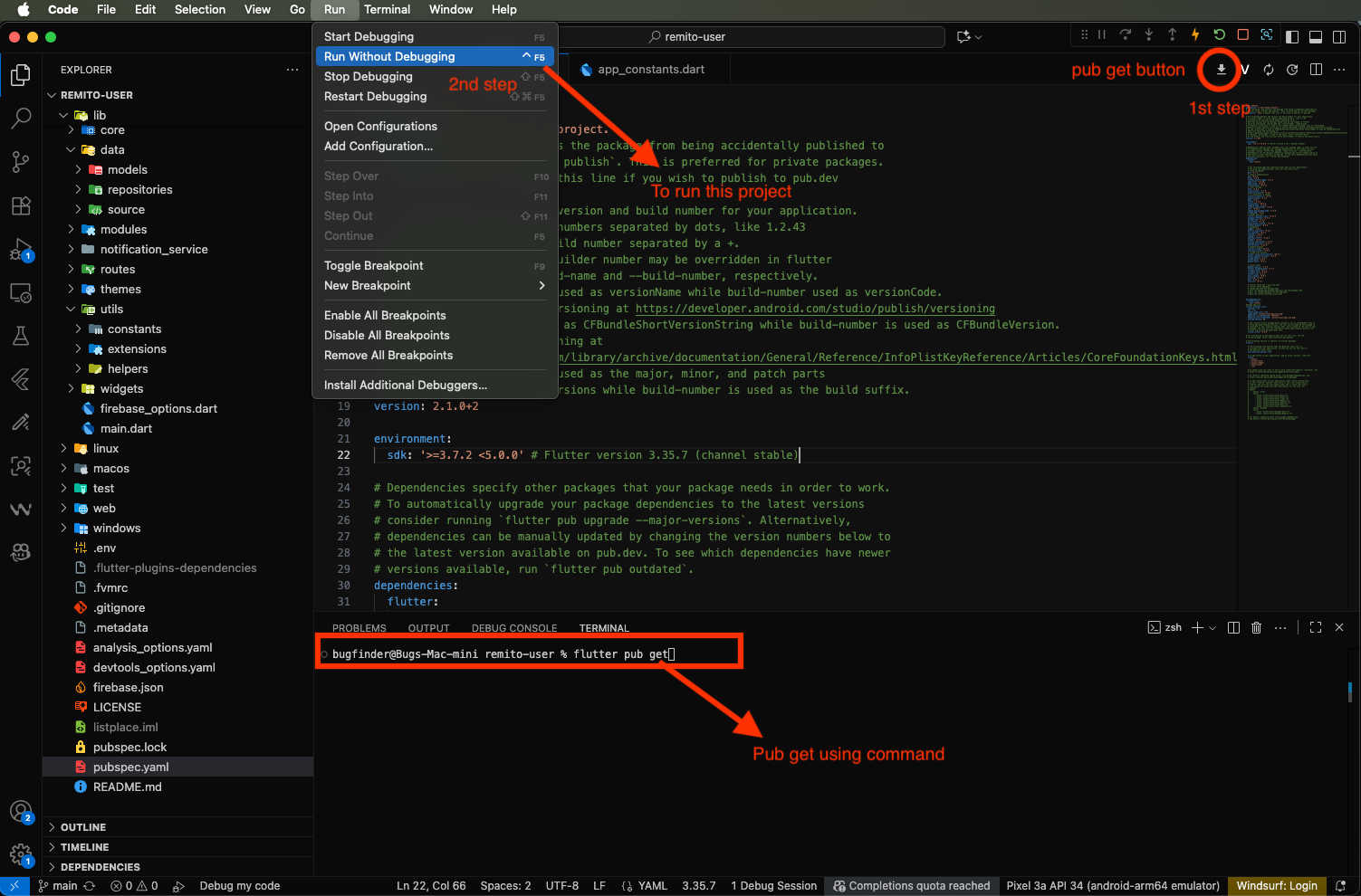
- Unzip the source code and open it in your IDE.
- On
pubspecs.yamland Run flutter pub get in your IDE terminal or click "Pub get" in Android Studio / VS Code. - Connect a physical test device or launch an emulator (Android/iOS) and click
"Run"to compile and launch the application.
Flutter Packages
-
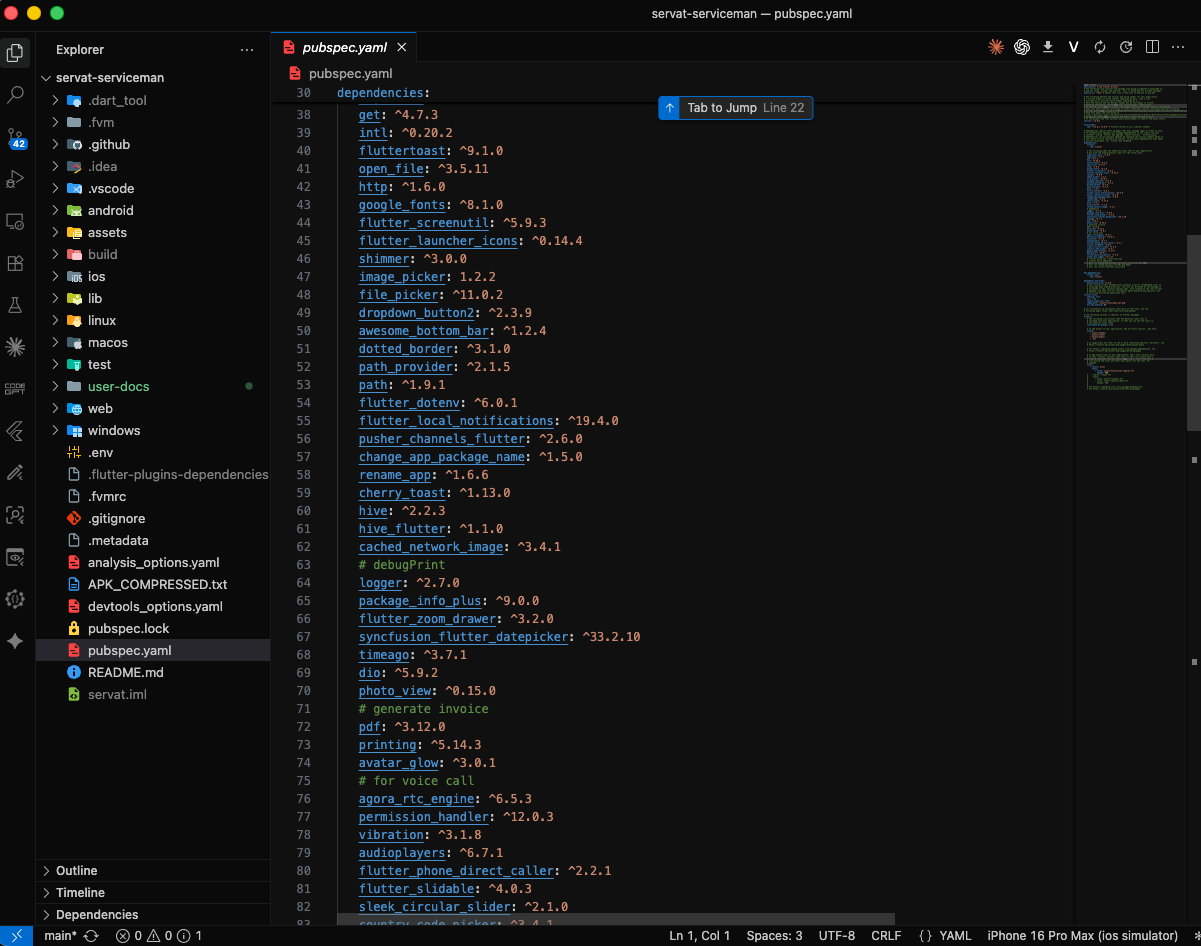
GetX (get):High-performance state management, dependency injection, and routing.
-
Google Maps Flutter & Geolocator:Live map rendering and route direction mapping.
-
Agora RTC Engine (agora_rtc_engine):Real-time in-app audio call integration.
-
Pusher Channels (pusher_channels_flutter):WebSockets implementation for real-time chat & notifications.
-
PDF & Printing (pdf, printing):In-app PDF invoice generation and print previews.
-
Flutter Zoom Drawer (flutter_zoom_drawer):Customizable sliding drawer menu navigation.
-
Hive & Hive Flutter:Fast key-value local data persistence.
-
Flutter Local Notifications:Mobile push and local notification dispatching.
Folder Structure
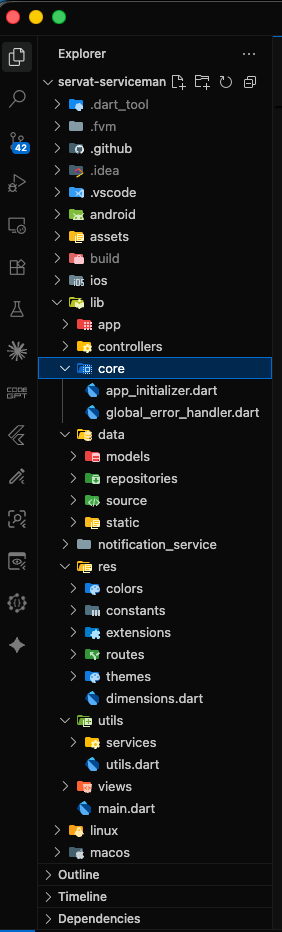
All you need to follow the lib(Library) Folder for any logical and UI changes in this project.
-
App Folder »Root application initializers and
MyAppwidget configuration. -
Controllers Folder »GetX business logic controllers.
-
Core Folder »Core bindings, dependency injection, and app startup logic.
-
Data Folder »API service providers, repositories, data models, and static sources.
-
Notification Service Folder »Handles local notifications and Pusher WebSockets real-time listeners.
-
Res Folder »App colors, constants, routes, and theme settings.
-
Utils Folder »Utility helpers, formatting functions, validators, and logger instances.
-
Views Folder »Contains all screen modules and reusable components.
Screens
-
Splash Screen
-
Onboarding Screen
-
Sign In Screen
-
Forgot / Password Reset Screen
-
Home / Dashboard Screen (Zoom Drawer with Bookings & Earnings summary)
-
Main Drawer Navigation Screen
-
Bottom Navigation Bar Screen
-
Bookings List Screen (Filter by Pending, Accepted, In Progress, Completed, Cancelled)
-
Booking Details Screen (Status updates, client details, work logs)
-
Google Maps Navigation & Directions Screen
-
PDF Invoice Generator & Preview Screen
-
Inbox / Conversation List Screen
-
Real-Time Chat Screen (Pusher Chat)
-
Agora In-App Voice Call Screen
-
Withdraw / Payout Request Screen
-
Withdraw Preview Screen
-
Flutterwave / Paystack Payout Screen
-
Withdraw History Screen
-
Financial Transactions Screen
-
Support Ticket Screen (List, Create Ticket, Ticket Chat)
-
Profile & Personal Info Screen (Edit profile & change password)
-
Notification Screen & Delete Account Screen
Setup Application
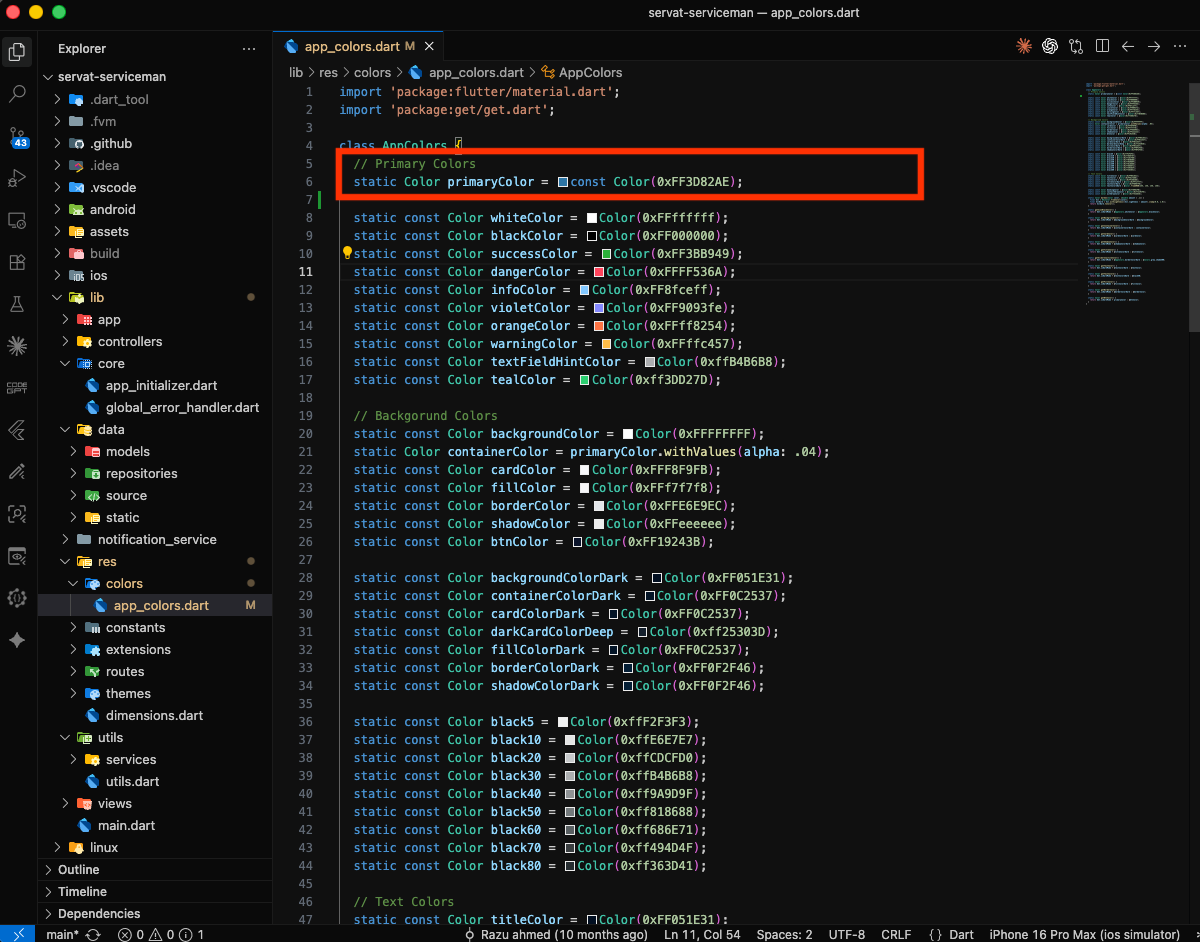
Change App Primary color Open :
lib
-
res
-
Colors
- app_colors.dart
-
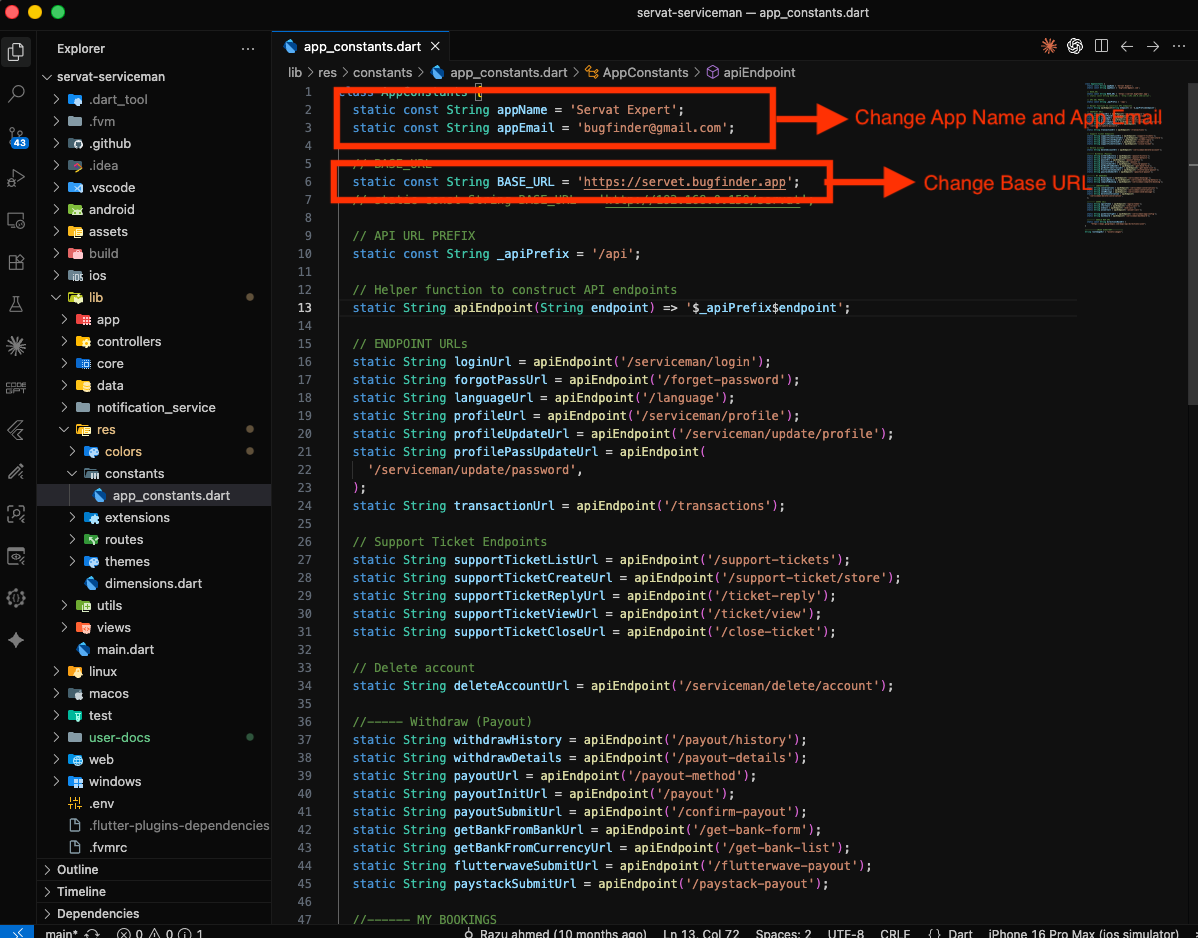
Change App Base_Url: Open :
lib
-
res
-
constants
- app_constants.dart
-
Google Map Setup:
- Create a Google Cloud project.
- Enable Maps SDK for Android.
- Enable Maps SDK for iOS.
- Create the required API keys.
- Restrict the Android API key to the appropriate app/package.
- Restrict the iOS API key to the appropriate Bundle ID.
- Configure the API keys in the project.
- Run the application and verify that the map screen works correctly.
-
Full documentation:https://developers.google.com/maps/flutter-package/config
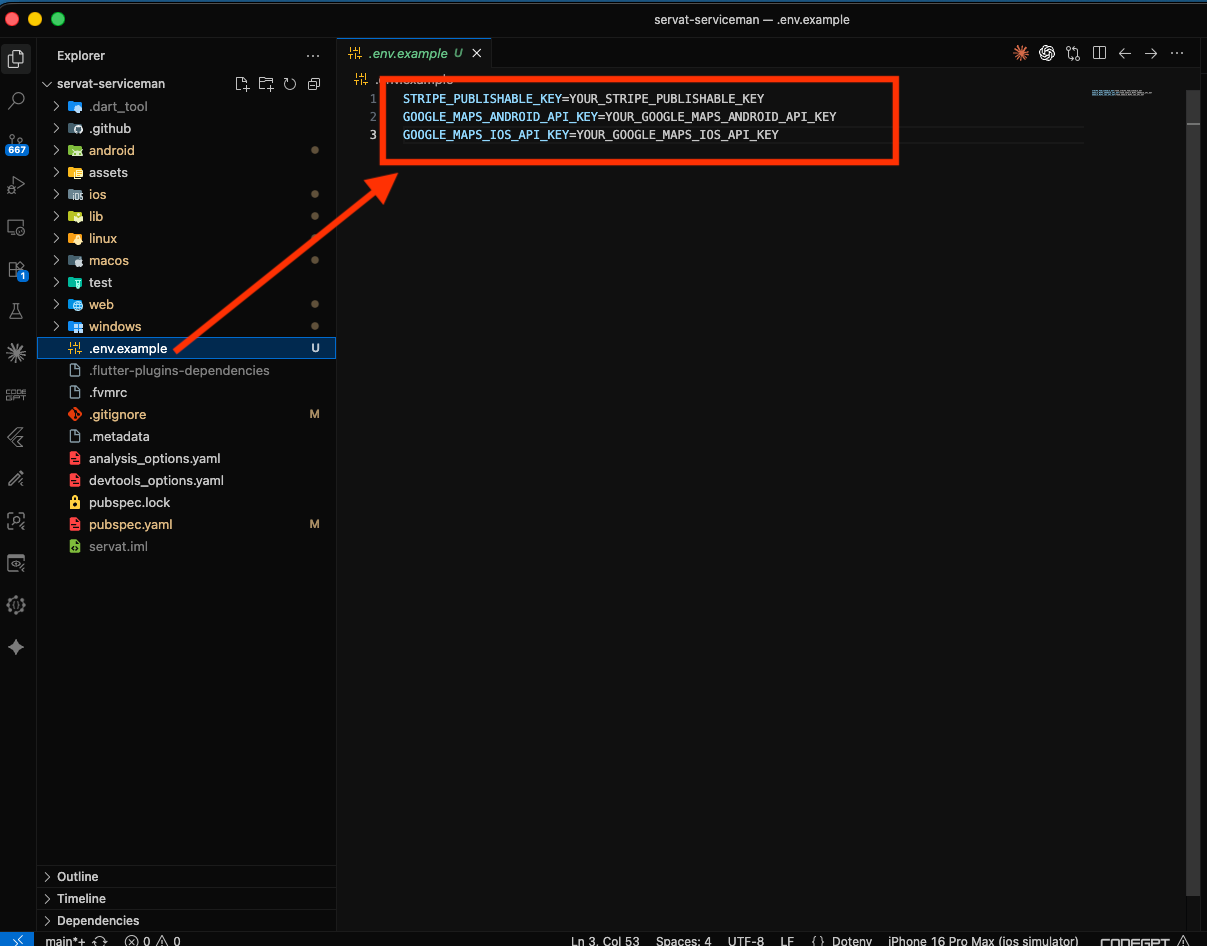
Env Configuration:
-
Copy
.env.exampleto.env. - Add your own API credentials.
- Never use credentials from the demo or developer environment.
- Restart the application after updating the configuration.
-
For change the app name please follow:https://pub.dev/packages/rename_app
-
For change the app icon please follow:https://pub.dev/packages/flutter_launcher_icons
-
For change the app package name please follow:https://pub.dev/packages/change_app_package_name
Publish App
1. Android
Follow the guidelines publish the app to Play Store.
-
PlayStore:https://flutter.dev/docs/deployment/android
2. IOS
Follow the guidelines publish the app to AppStore.
-
AppStore:https://flutter.dev/docs/deployment/ios